It doesn't always rain in everyone's favor, but if you're a developer, today's rain might have a sweet aftertaste.
Of everything presented at WWDC 2025, the general public will likely remember two things: the jump to iOS 26 and the new Liquid Glass design. And while yes, these are interesting details and Apple's new design language comes with some genuinely good-looking changes, it's perhaps in the second half of today's sessions, at the State of the Union, where developers really had a feast.
Xcode's major facelift
One of the biggest renovations goes to Xcode, Apple's flagship development environment, which finally seems to deliver something close to the promised Swift Assist. Call it Swift Assist, call it canned magic, call it ChatGPT in Xcode — the name doesn't matter — but what it can do is genuinely interesting. For the first time, it's no longer just a promise: it's something tangible we can try, and surprisingly, it seems to perform on par with the major established alternatives like Copilot or Cursor.
Initial setup
In my case, I downloaded the macOS Tahoe beta and Xcode 26 beta on a
MacBook Air. As soon as you open the IDE, you see a refreshed interface
proudly showcasing the aforementioned Liquid Glass, and a new icon
 catches the eye, giving us access to the new chat interface.
When you access it for the first time, you'll need to choose whether to use ChatGPT (you need to have Apple Intelligence enabled on your Mac) or another model.
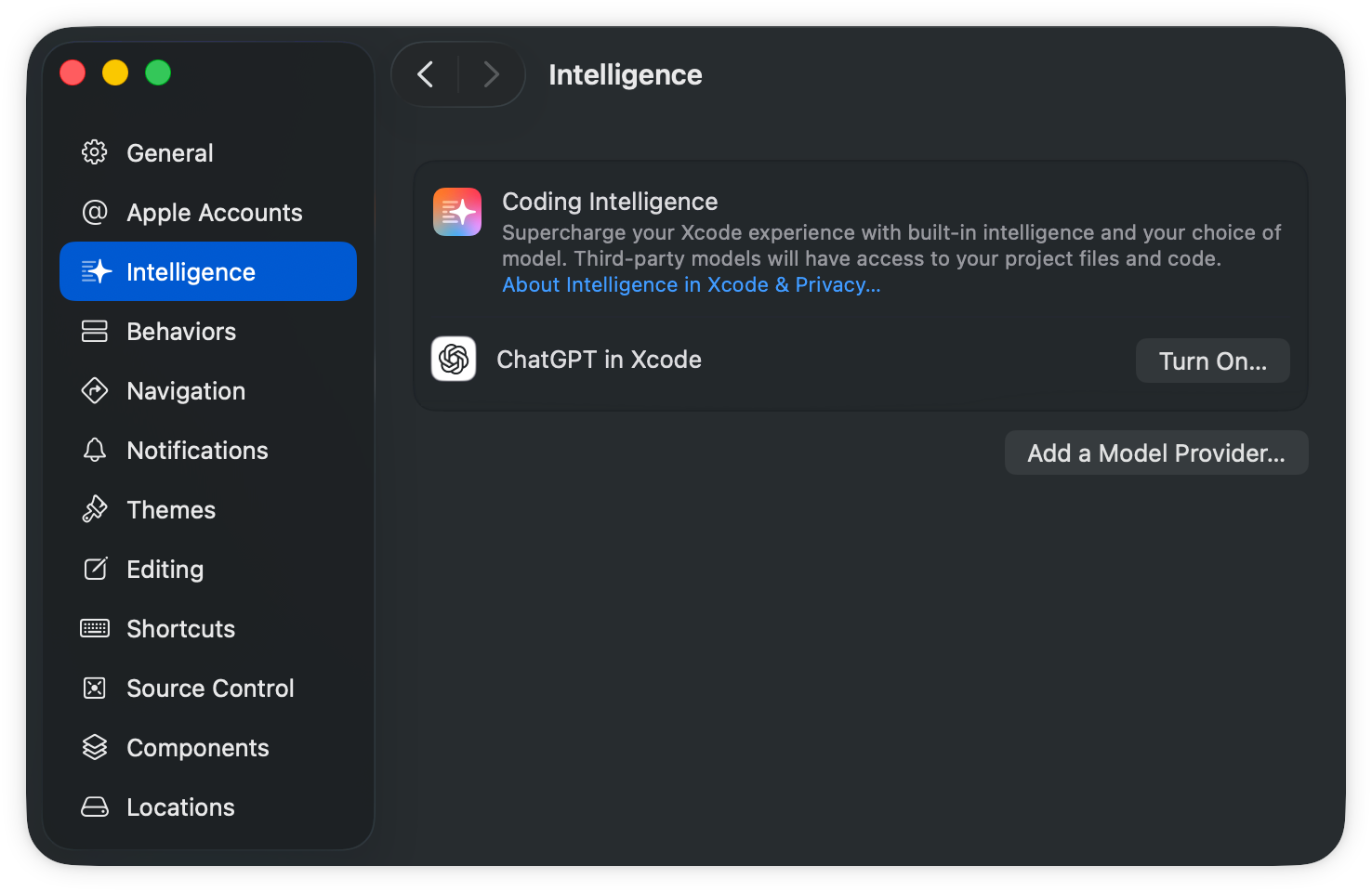
When you select ChatGPT, you can either use the limited free tier or, if you have a ChatGPT Plus account, you'll get a higher number of uses/queries.
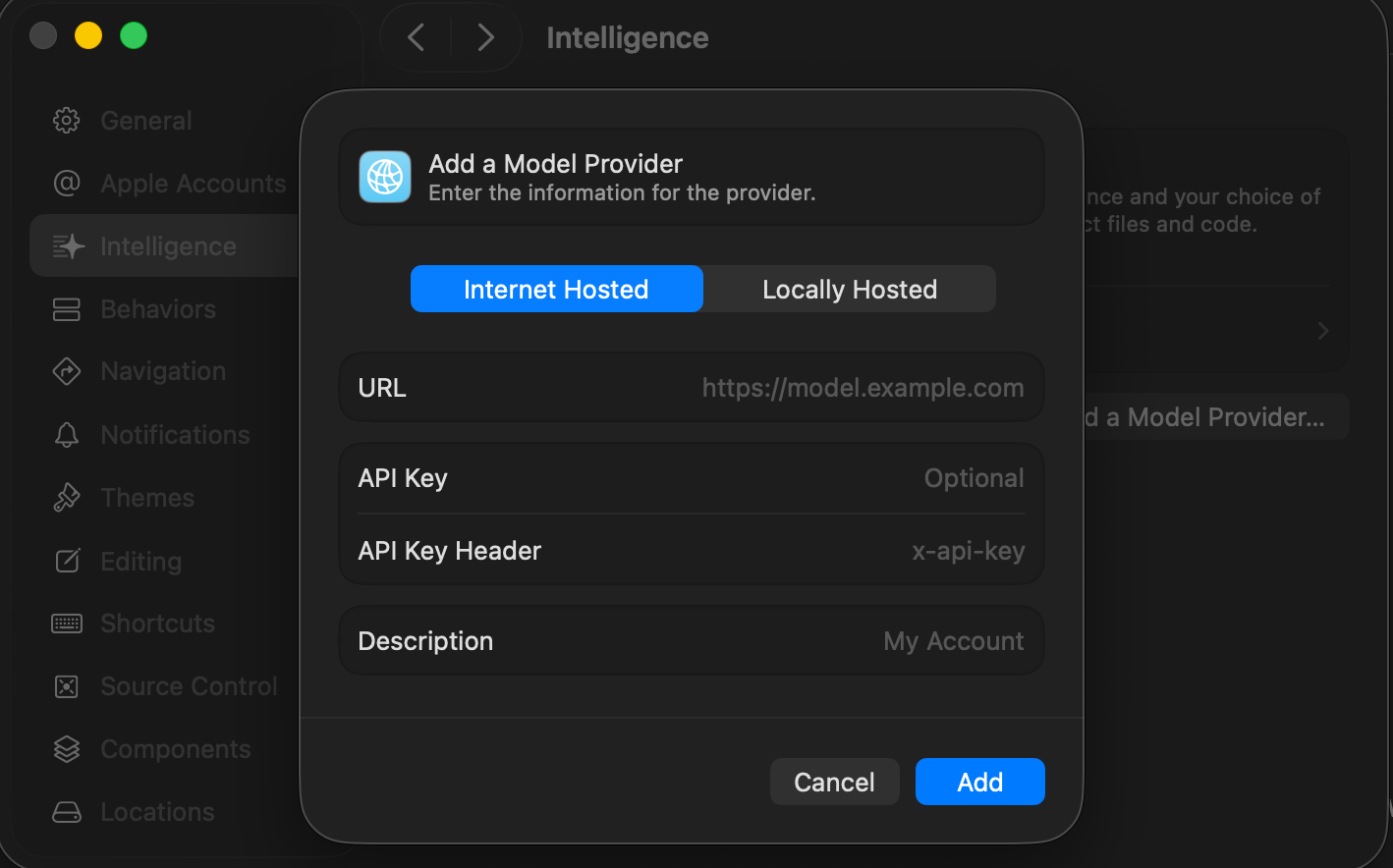
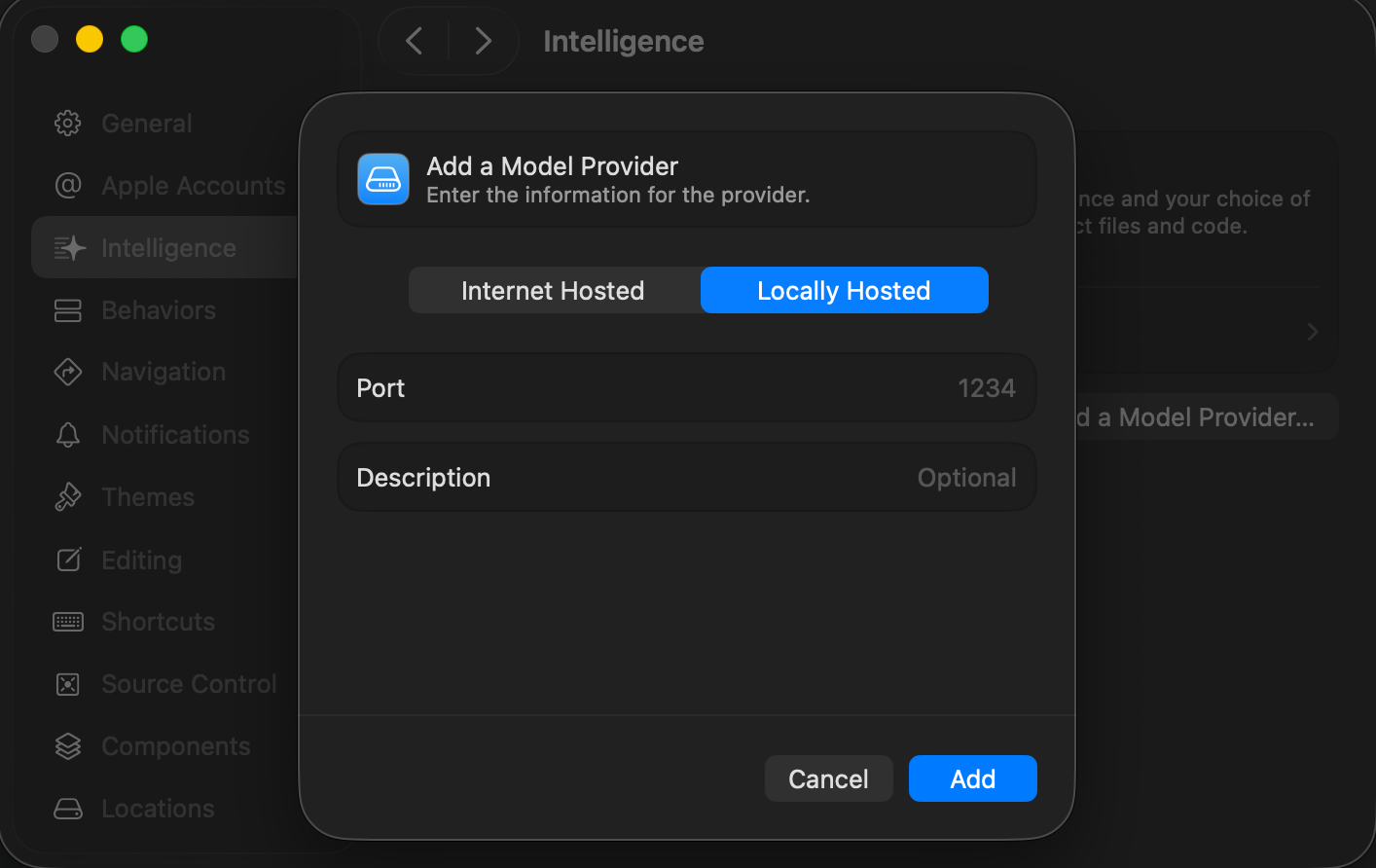
If you choose another model, we don't yet have integration as seamless as OpenAI's (unfortunately), but you do have the option of providing an API key or — and this is very interesting — using a local model that doesn't depend on an internet connection.
Using the tool
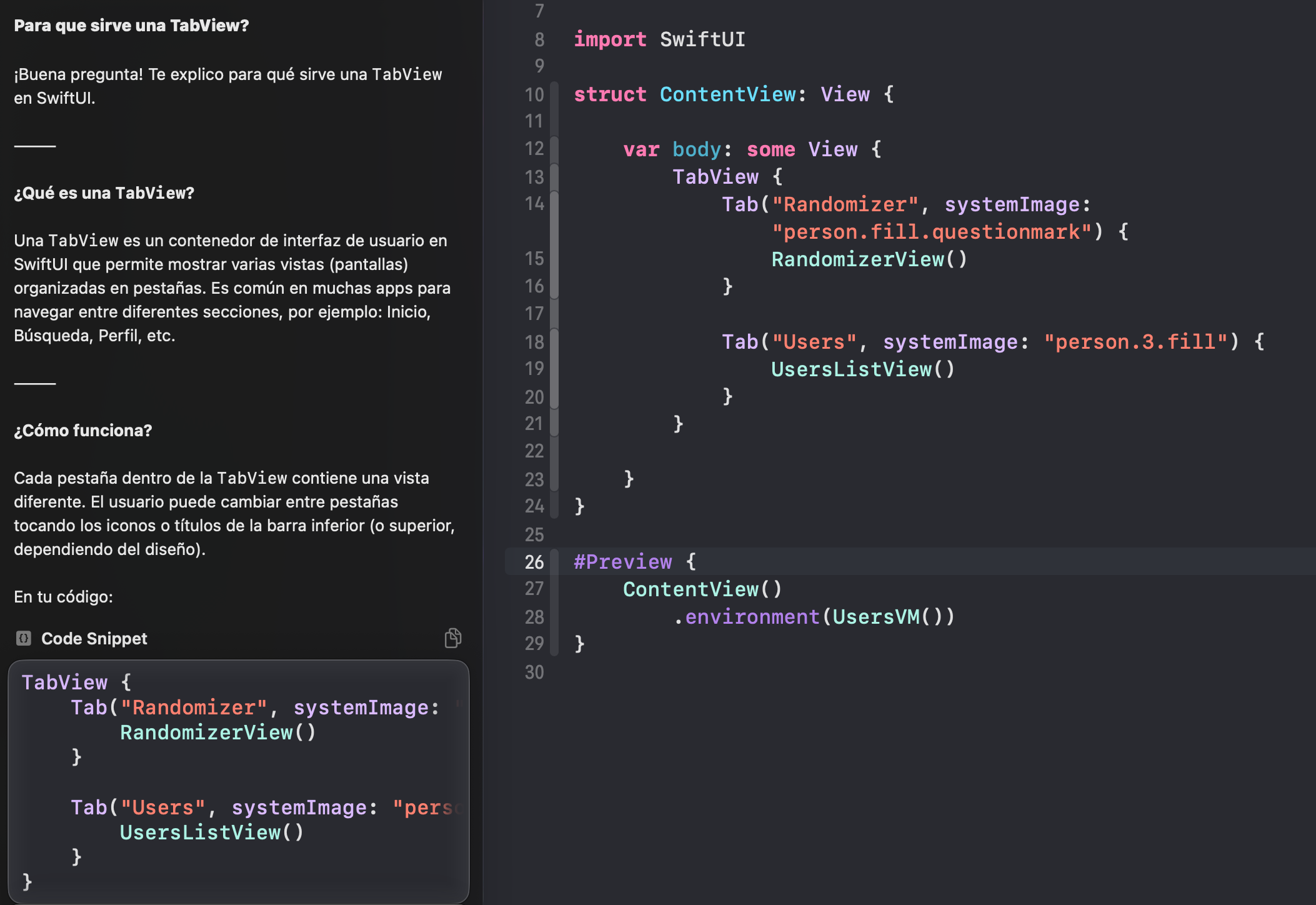
In my case, when I first configured it, the model wasn't recognized properly and I had to restart Xcode. Once inside, there are two types of interaction:
- Select code as reference: To the left of the first
selected line, an icon appears showing a set of quick actions (coding
tools) and the ability to write a short instruction.
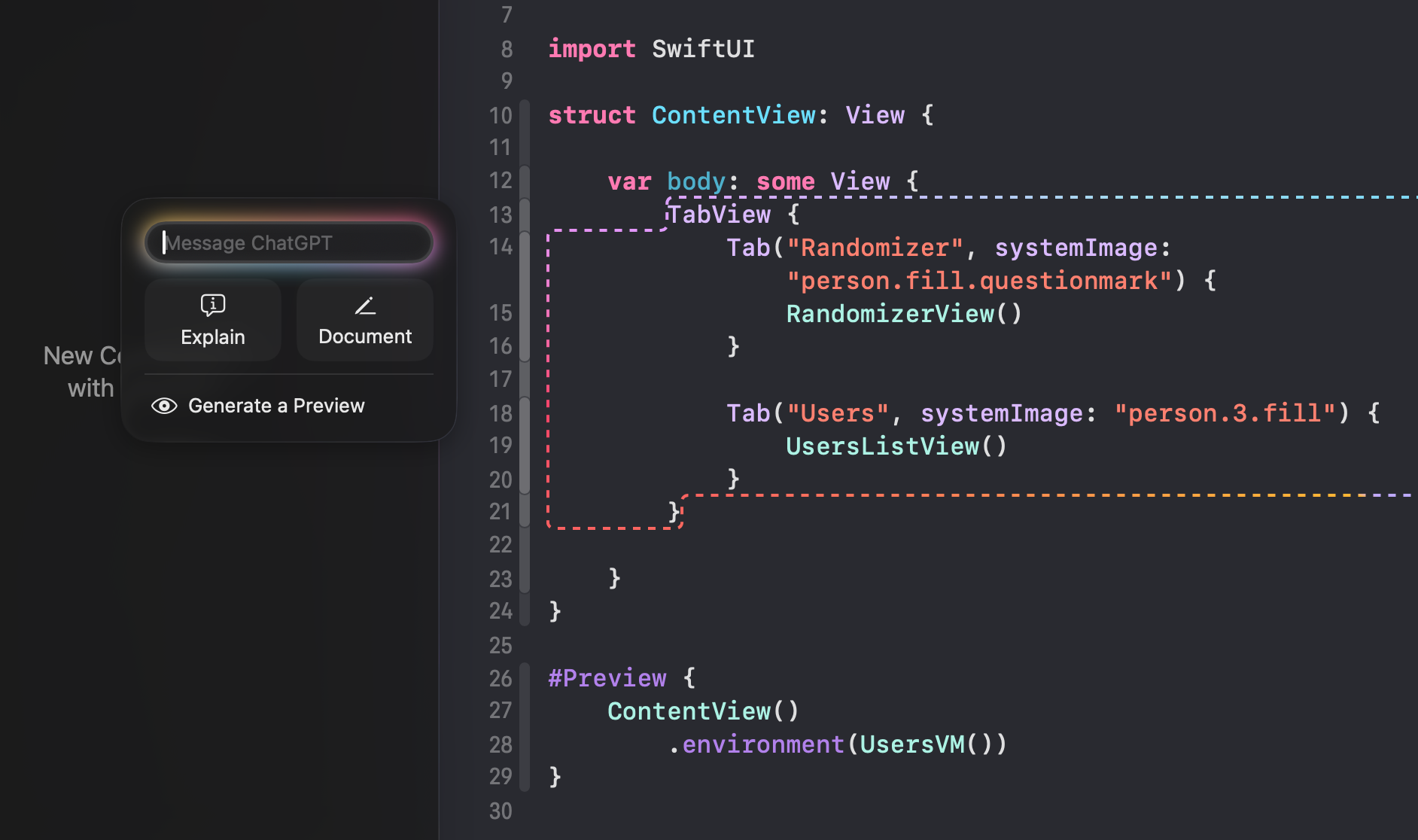
- Direct interaction: You can interact with the model
directly in the chat (coding assistant), with the ability to attach
files or reference other parts of the project. You can ask questions
about the code, request changes, etc.
Revolution or evolution?
If you've tried similar tools like Cursor or Copilot integrated in VS Code, these new Xcode "capabilities" might not seem that impressive. But for a developer working in Swift, seeing that a well-integrated aid of this caliber is natively available is reason to celebrate.
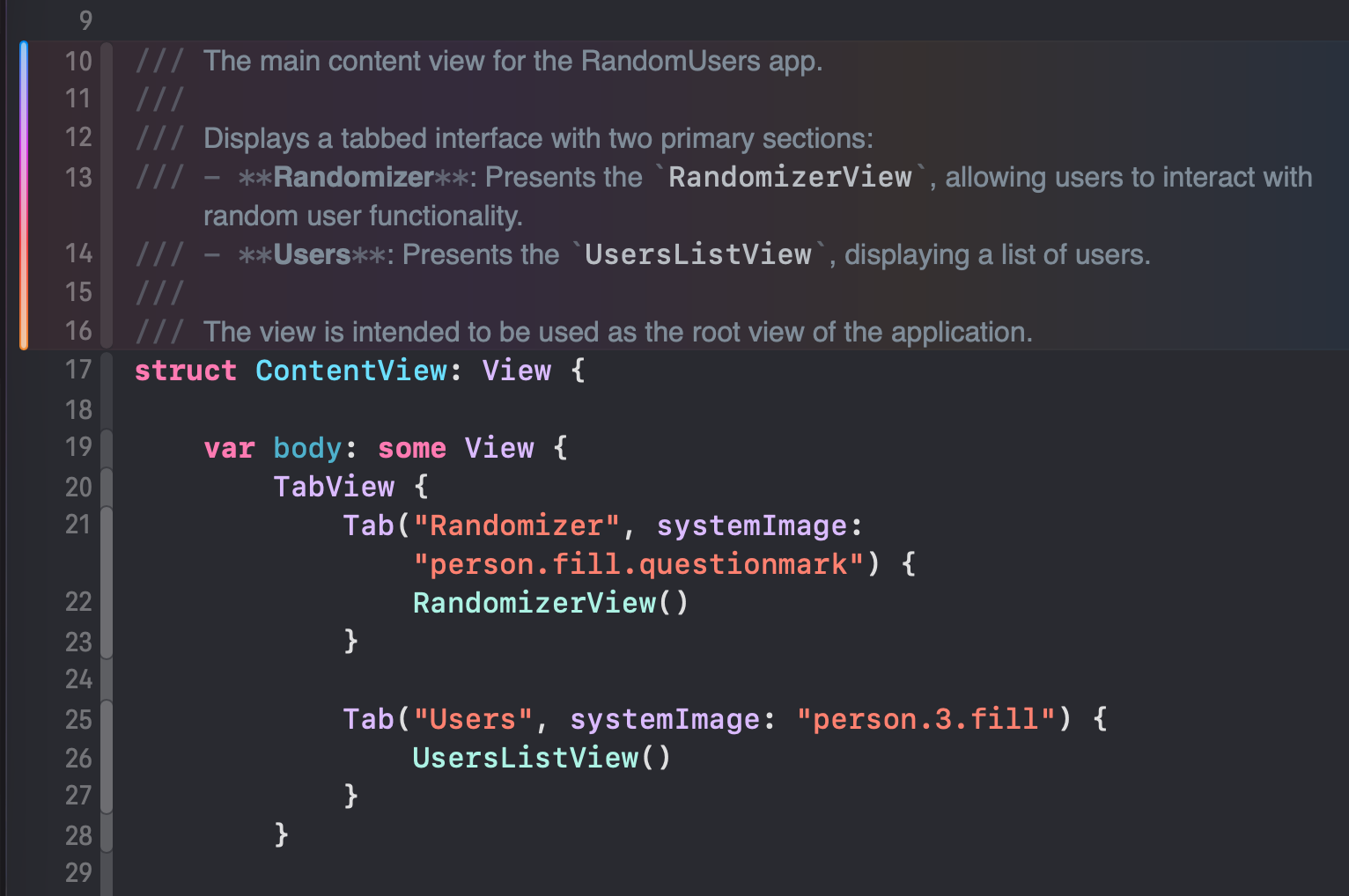
"It doesn't just seem to process code correctly — it's designed for tasks that can be truly useful, like automating documentation."
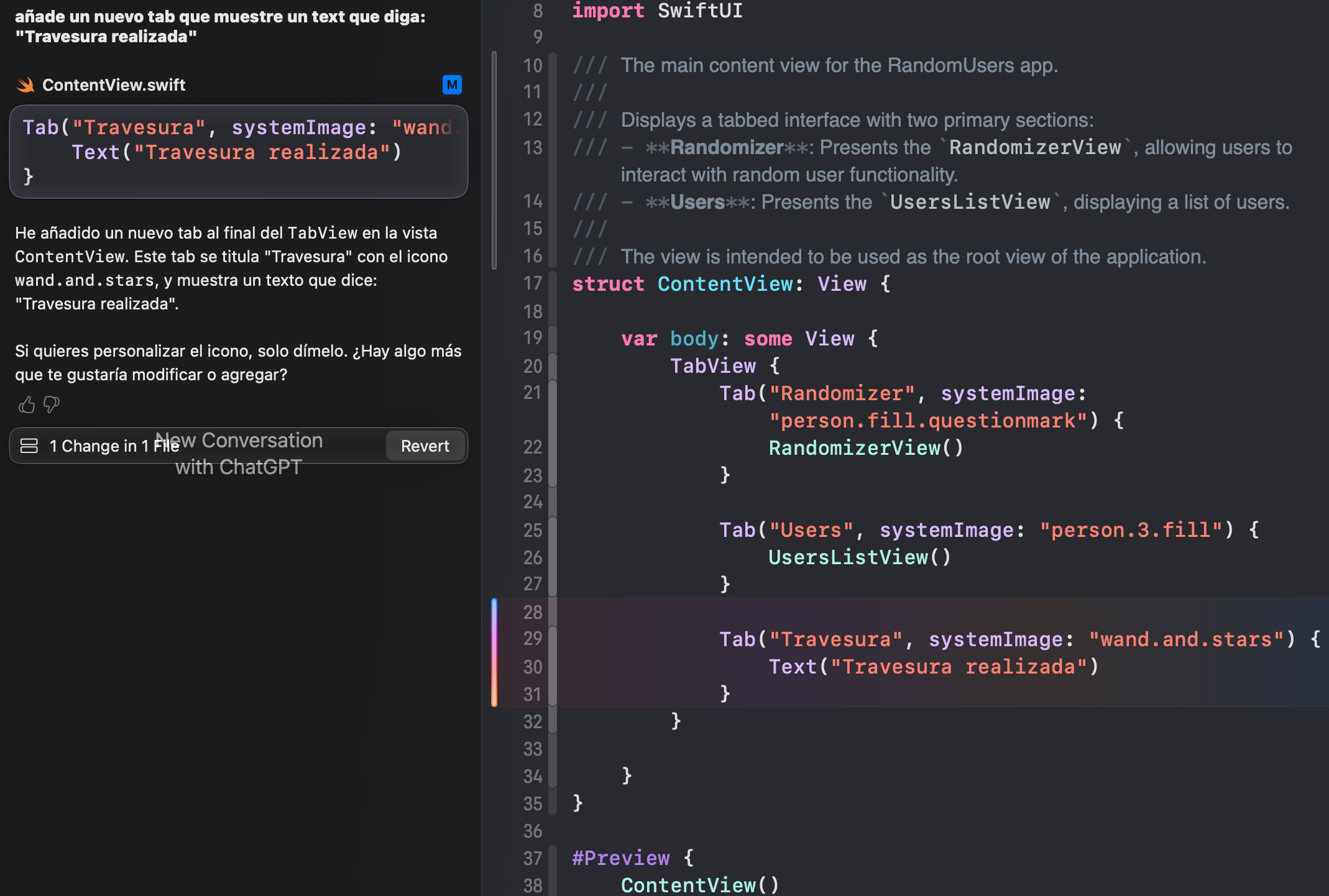
As the tests show, it works correctly and the changes it makes to the code are precise. It's not just a chat — it agentically modifies the code.
The real test
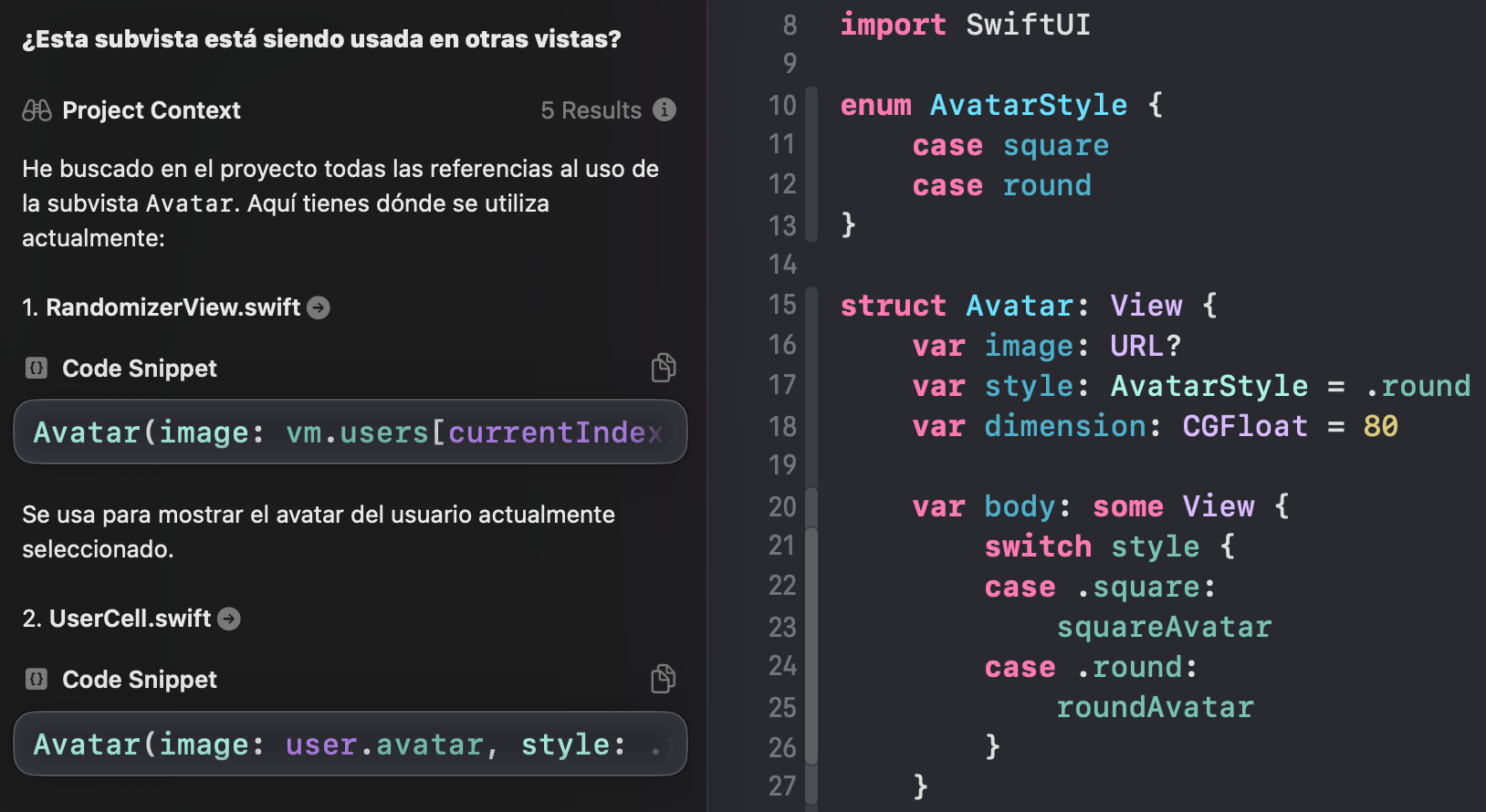
The real test came when I asked if it could show whether a view was being used in other views. It proved that it doesn't limit itself to the context of the file you have open — it can read the entire project context to provide answers. This will need testing with large projects, but it's definitely a really good addition.
Conclusion
The inclusion of these tools represents an important step for Apple's development ecosystem. Although it arrives late to the AI-in-code-editors party, the native integration and full project context promise a unique experience for Swift and SwiftUI developers.
Will it be enough to compete with the established tools? Only time will tell, but it certainly seems like a solid step — and perhaps exactly what we need right now.